For Players
- Check your homework. Go to the Homework tab to see your assigned games. Each game has a film to watch and stats to track.
- Click "Start" to open the tracking page. The game video will play on the left side of your screen.
- Watch the video and track in real time. As you see events happen, select the player number on the right, then tap the matching action button.
- Don't pause! The point is to track events as they happen in real time, just like a real game. Your timing accuracy is part of your score.
- Set the quarter using the Q1-Q4 buttons when the quarter changes in the video.
- Set the context (Even, Man Up, Man Down, etc.) before logging events. It auto-resets to Even after 30 seconds or after you record a stat.
- Submit when the video ends. Click the green "Submit" button.
- Check your score after the coach grades your submission. Go to Homework and click "Review" to see how you did.
Stat Button Guide
Offense
| Button | When to Use |
|---|
| Shot | Any shot attempt. Pick the zone on the pool diagram (where they shot from), then the outcome (Goal, Saved, Blocked, or Wide). |
| Assist | The player who passed the ball to the scorer on a goal. Example: #8 passes to #5 who scores — #8 gets the assist. |
| Excl Drawn | Offensive player draws a kickout foul (the defender gets excluded). Example: #7 drives and the defender grabs them — #7 drew the exclusion. |
| 5m Drawn | Player earns a 5-meter penalty shot. Example: a shot gets blocked by a defender's arm inside 5 meters. |
| TO: Bad Pass | Turnover caused by the player's own bad pass. Ball goes out of bounds or directly to the other team. |
| TO: Stolen | Turnover where the ball was stolen from the player. They had possession and a defender took it. |
| Off. Foul | Offensive foul committed by the player. Example: pushing off a defender, charging, or an offensive exclusion. |
Defense
| Button | When to Use |
|---|
| Steal | Player takes the ball away from an opponent. Clean steal or intercepted pass. |
| Block | Player blocks a shot with their hand or arm (not the goalie). |
| Tip | Player tips or deflects a pass. Doesn't fully steal it but disrupts the play. |
| Def Excl | Player commits an exclusion foul and gets kicked out for 20 seconds. Example: #4 grabs an attacker driving to the cage. |
| 5m Allowed | Player commits a foul that results in a 5-meter penalty for the other team. |
| GA (Def) | Primary defender responsible when a goal is scored. Example: #10 was guarding the shooter who scored — #10 gets the GA (Def). |
Goalie
| Button | When to Use |
|---|
| GK Save | Goalie makes a save on any shot. |
| GK GA | Goalie is scored on (goal allowed). |
| GK 5m Face | Goalie faces a 5-meter penalty shot. |
| GK 5m Save | Goalie saves a 5-meter penalty shot. |
| GK Outlet | Goalie makes a pass that leads directly to a goal (outlet assist). |
Context Buttons
Set the game situation before logging a stat. Context auto-resets to Even after 30 seconds of video time or after you record any stat.
| Button | Meaning |
|---|
| Even | 6 vs 6 — normal play, no advantage. |
| Man Up | Our team has a player advantage (6 vs 5) because a defender was excluded. |
| Man Down | Our team is down a player (5 vs 6) because one of our players was excluded. |
| Counter | Fast break or transition — a quick attack before the defense is set. |
| 5m | A 5-meter penalty shot situation. |
Shot Zones
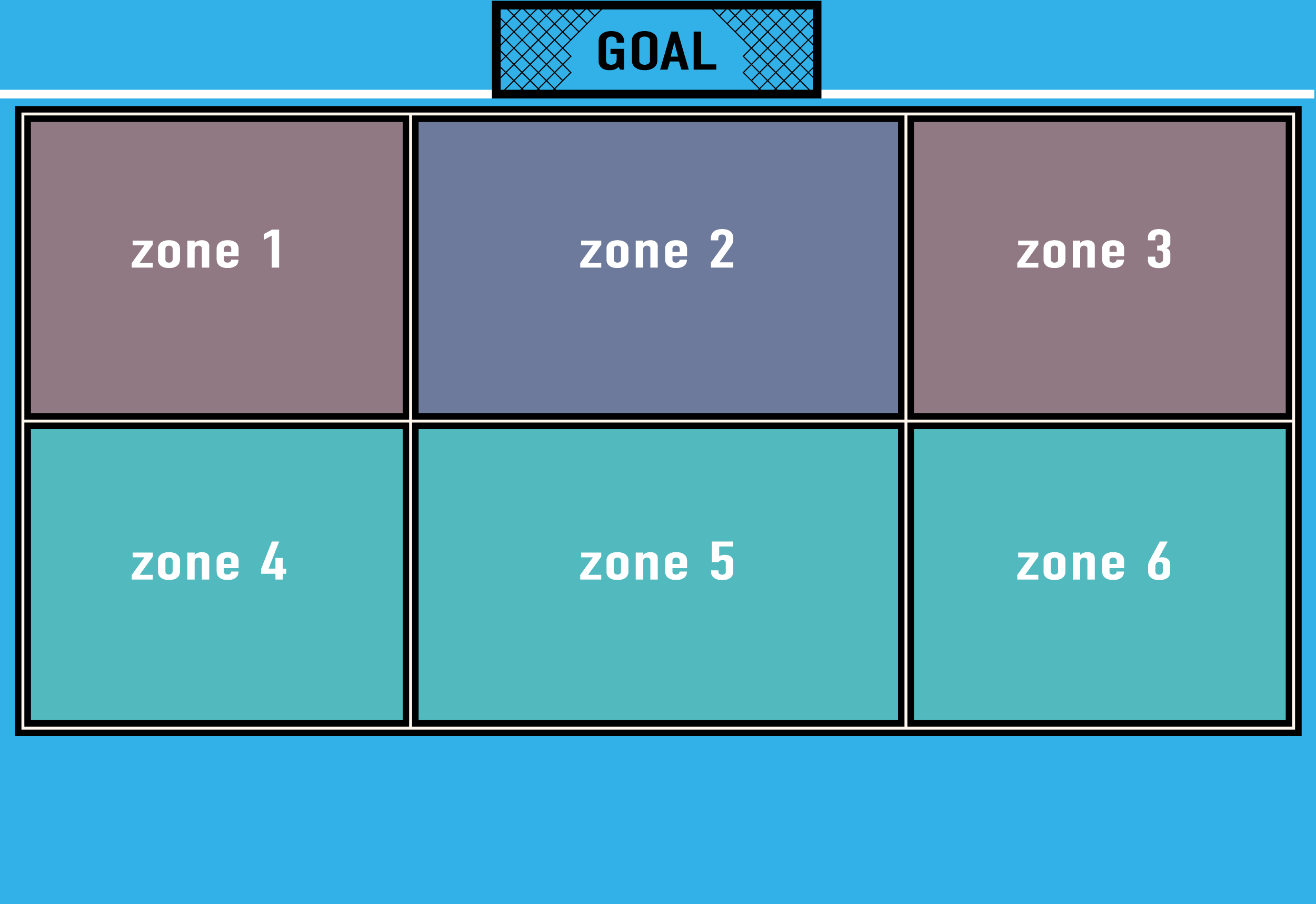
When you tap "Shot", the pool diagram appears. Tap the zone where the player shot from.
| Zone | Location |
|---|
| Zone 1 | Left Wing — top left of the pool |
| Zone 2 | Point — top center, directly in front of the goal |
| Zone 3 | Right Wing — top right of the pool |
| Zone 4 | 1-2 — bottom left, between positions 1 and 2 |
| Zone 5 | Post Up — bottom center, in front of the goal at water level (set/hole set position) |
| Zone 6 | 3-4 — bottom right, between positions 3 and 4 |
| Counter | Shot taken on a fast break / transition — separate button below the diagram |
After picking the zone, choose the outcome: Goal, Saved, Blocked, or Wide.
How Scoring Works
- Each of your events is compared to the coach's answer key.
- An event is Caught if it matches the same event type within 5 seconds of the coach's event.
- An event is Missed if the coach logged it but you didn't.
- An event is Extra if you logged something that doesn't match anything in the answer key.
- Score = Caught / (Caught + Missed) × 100%
Tips
- Use a laptop or desktop computer. This app is designed for larger screens.
- Make the video as large as possible so you can read cap numbers.
- After you record a stat, the player is automatically deselected. Pick the next player before logging the next event.
- Context (Man Up, Man Down, etc.) resets to Even automatically after 30 seconds or after any stat. Re-select it if the situation is still active.
- Use the Undo button if you make a mistake.
- You can click any event in the bottom log to jump to that moment in the video.
For Coaches
- Track the answer key. Open any game and click "Track Answer Key". This creates the master set of events that players are graded against.
- Assign homework. On the game detail page, click "Assign All Players" to send the game to all players.
- Grade submissions. After players submit, click "Grade" or "Grade All Submitted" to run the comparison engine.
- Review scores. Click "Compare" on any graded assignment to see a side-by-side timeline of the coach's events vs. the player's events.
- Check the scoreboard to see how all players are ranking over time.